8 things we check before launching any website (one took Lighthouse from 32 to 88)
7 min
The most expensive lesson we've learned building immersive websites: they can look completely finished and still be nowhere near ready to launch.
The design can be approved, the animations can feel perfect, and so on, but once it gets posted on Instagram, the hero breaks inside the in-app browser. Then, a week after launch, half the important pages still aren't indexed.
So every website we ship goes through the same eight checks before it goes live, and some of them are not about how it looks. Most of them take less time than fixing the consequences later:
- Structure headings logically and use semantic HTML.
- Write useful alt text for every meaningful image.
- Verify the site in Search Console and request indexing for key pages.
- Give every page a unique, clickable title.
- Add an llms.txt file for AI tools.
- Move heavy assets to Cloudflare before traffic arrives.
- Test the site inside Instagram, X and Telegram browsers.
- Run Lighthouse, keep blur to a minimum.
Here's how we do each one.
1. Check heading structure and use semantic HTML
Before launch, we check that the headings describe the content and follow a logical hierarchy: a main h1, h2s for sections, and h3s for subsections. This makes the page easier to navigate and understand. Google specifically recommends putting important words in prominent locations such as the title and main heading, and using semantic HTML where possible.
2. Write useful alt texts for every image
First of all, it's an accessibility requirement, but apart from that, it helps SEO too. It does not mean describing every decorative gradient, icon and background shape on the site. The question we use is: “If this image disappeared, what information would the user lose?” Good alt text improves accessibility and also gives Google more context about the image. Google explicitly uses alt text alongside page content and image understanding systems to determine what an image is about. The bad version is "dashboard image", but the useful one is closer to "Analytics dashboard showing monthly revenue growth from January to June".
3. Verify the website in Google Search Console and request indexing for key pages manually
For a small website, that means inspecting the core URLs directly. For a larger site, it also means submitting and checking the sitemap.
Search Console’s URL Inspection tool lets you see what Google knows about a URL, test the live page and request indexing. For many URLs, Google recommends using a sitemap rather than manually submitting everything one by one. Important note: requesting indexing does not guarantee that Google will index the page immediately, but it’s much better than discovering two weeks later that Google couldn’t properly crawl an important page.
4. Check every page title manually
Duplicate titles across pages are one of the most common mistakes we see, and they cost rankings. Google recommends giving every page a descriptive <title> and avoiding repeated or boilerplate titles across a site. Each important URL should answer three questions immediately: What is this page about? Why is it different from the other pages? Would I click this title if I saw it in Google? If the answer to any of those is unclear, rewrite it.
5. Add llms.txt
AI agents read a page differently than search crawlers do, and llms.txt tells them what the page actually is. This way, AI systems get a cleaner, machine-readable map of the most useful content on the site instead of expecting an agent to reconstruct everything. Remember, this is just an additional machine-readable layer. Your actual website still needs clean HTML, useful page copy, logical URLs and accessible content.
6. Move heavy assets to Cloudflare before launch
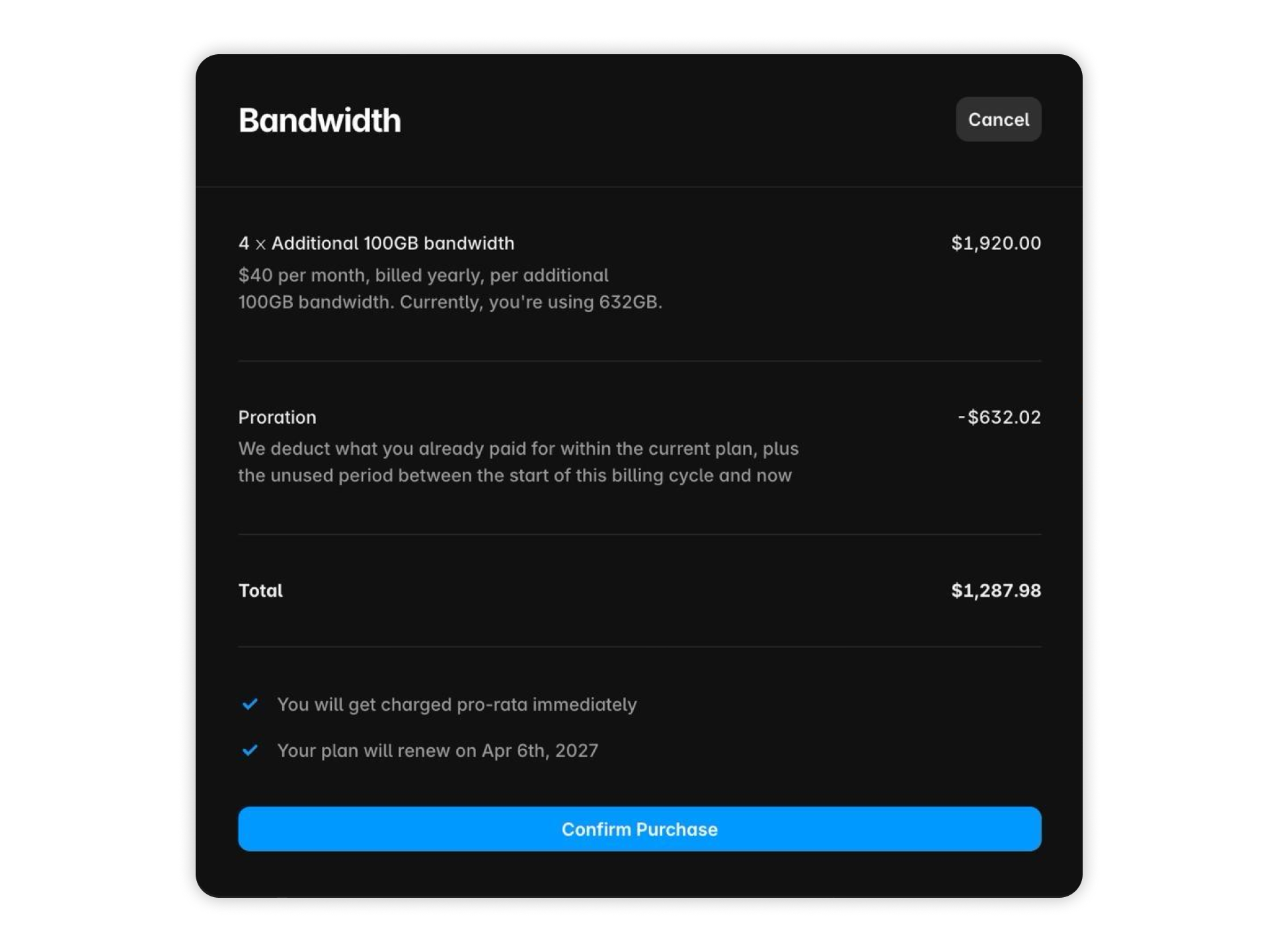
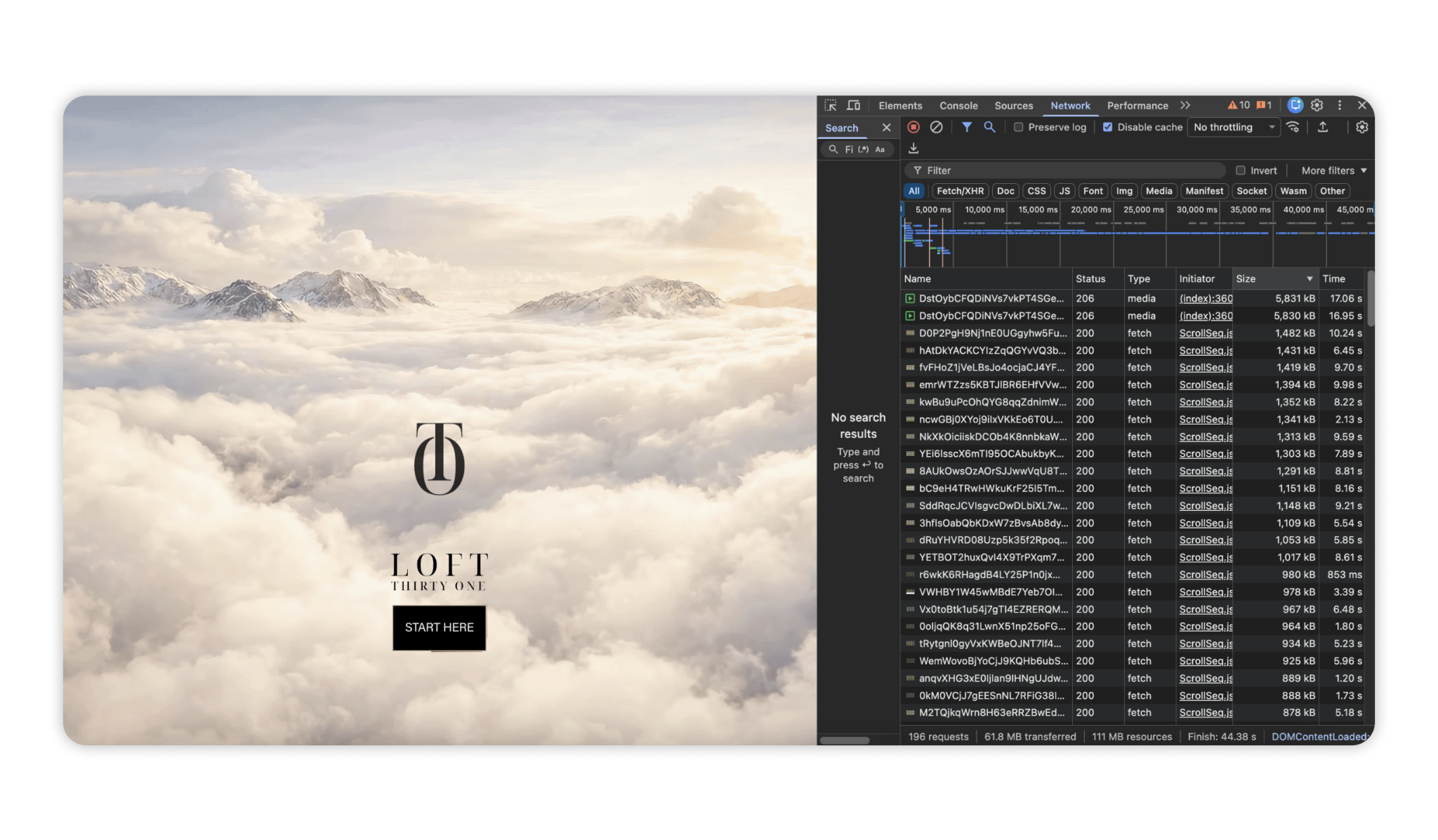
High-end websites become heavy very quickly: video loops, large PNGs, renders, background images, galleries, and so on. All of them look great until thousands of people start requesting them from different parts of the world. We use Cloudflare R2 + Cloudflare Images + Cloudflare CDN for fast image delivery worldwide on asset-heavy projects. We learned this once through a bandwidth bill we would rather not pay twice,
read this article for more.
7. Test the website inside Instagram, X, and other in-app browsers before anyone else does
This is one of the easiest checks to skip because everything already looks perfect in Safari and Chrome, and then, the marketing starts.
The founder posts the website on Instagram and X, the Telegram community opens it from a pinned post, but users are not visiting your website through normal Chrome, the website opens through built-in browsers controlled by those apps. In our experience, they can be unreliable. Those in-app browsers render pages differently from standalone web browsers, especially anything using view_height can break without warning, and nobody catches it until a client sends the link to their whole audience. Do it like this: create a real post or burner profile → add the link → open it from another account → only then navigate the website like a normal user. The Framer preview or resizing desktop Chrome won’t help, do only via the actual apps. We test Instagram, X and Telegram at minimum when they matter to the client’s acquisition channels, because websites should work where your traffic comes from.
8. Run the website through Google Lighthouse and investigate loading performance
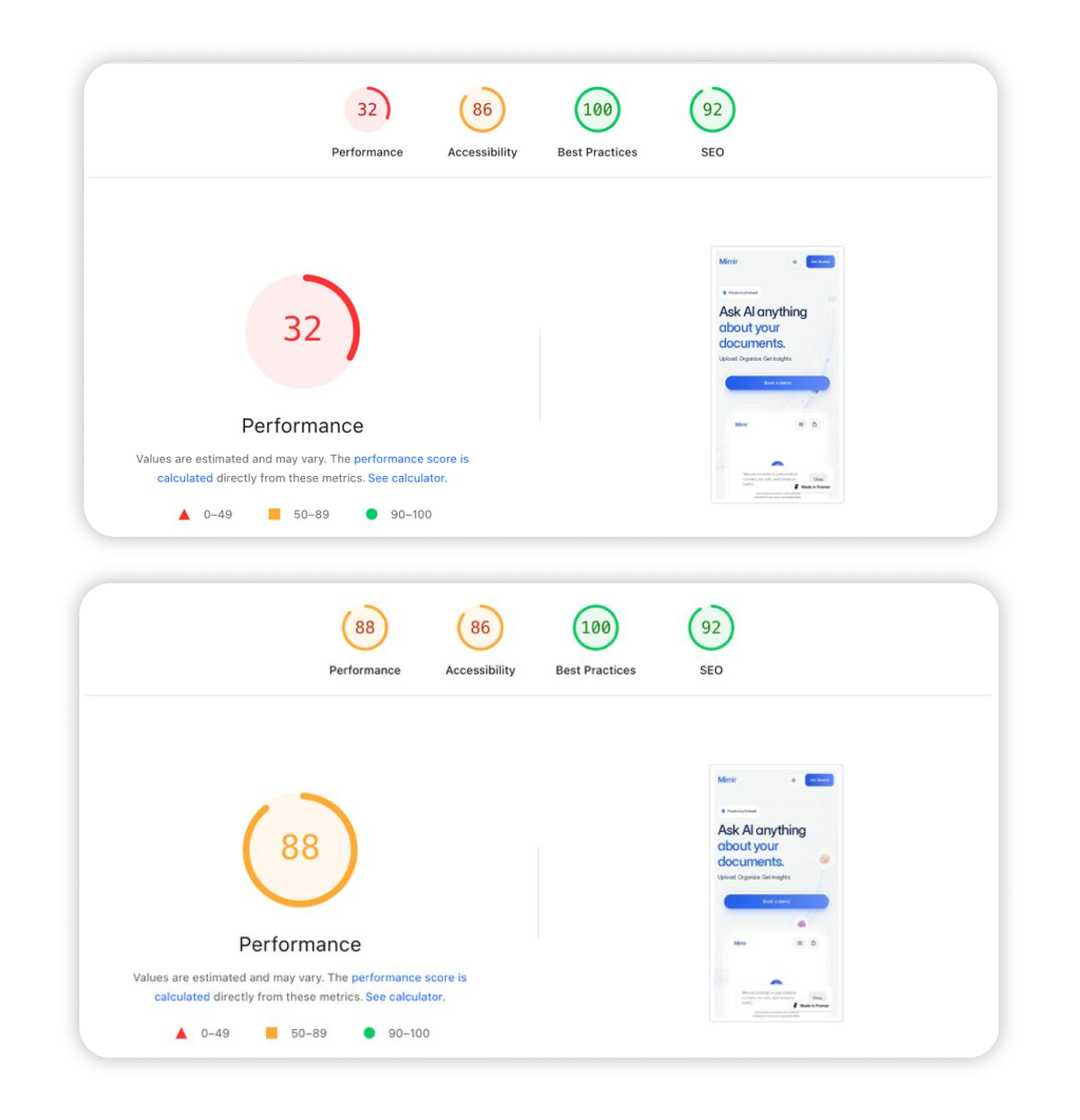
We use Lighthouse as a diagnostic tool to see if something is blocking the initial render, whether fonts are delaying text, animations doing too much work, and so on. One thing we watch particularly closely on design-heavy sites is blur. If you’re using it, keep CSS blur effects to a minimum: it costs more to render than most people think. We use .png and .webp even when the file looks bigger, because it's just easier on the visitor's device to render. Too much CSS and too many renders is what slows a site down too. That leads to a slightly counterintuitive lesson: the smallest asset is not always the fastest solution. On one project, that process took the Lighthouse performance score from 32 to 88 (a 2.75x improvement), and visually, almost nothing changed:
8. Run the website through Google Lighthouse and investigate loading performance
We use Lighthouse as a diagnostic tool to see if something is blocking the initial render, whether fonts are delaying text, animations doing too much work, and so on.
One thing we watch particularly closely on design-heavy sites is blur. If you’re using it, keep CSS blur effects to a minimum: it costs more to render than most people think.
We use .png and .webp even when the file looks bigger, because it's just easier on the visitor's device to render. Too much CSS and too many renders is what slows a site down too.
That leads to a slightly counterintuitive lesson: the smallest asset is not always the fastest solution.
On one project, that process took the Lighthouse performance score from 32 to 88 (a 2.75x improvement), and visually, almost nothing changed:
A website is not finished when the design is finished. It’s finished when people can find it, machines can understand it, browsers can render it, devices can run it, and real users can open it from the places where they actually discover it.
These checks are what stop the beautiful part from breaking. Save this list: someone is skipping one of these this week.
Follow us on 𝕏 for more checklists like this one. If you want your next launch handled end-to-end, start a project with us.
Q&A
What should you check before launching a Framer website?
Check heading structure, image alt text, page titles, Google Search Console setup, asset delivery, mobile layouts and loading performance. Test the published website in the in-app browsers your audience uses, too.
How do you submit a Framer website to Google?
Verify your domain in Google Search Console, submit your sitemap and use the URL Inspection tool to check important pages and request indexing. A request does not guarantee that Google will index a page or how quickly it will happen.
How can you improve a Framer website’s performance?
Use Lighthouse to identify bottlenecks, then optimize heavy images and videos, reduce expensive visual effects and limit unnecessary rendering work. Test the results on mobile devices as well as desktop.
Does a website need llms.txt?
Yes, it’s a proposed format that gives supporting AI tools an overview of your website and links to useful content. However, it does not replace standard SEO work or guarantee visibility in AI answers.